
一级分类1
请选择下方子菜单查看详情
请选择下方子菜单查看详情
Check the model name on the bottom label.


Connect printer to your computer via USB cable.

Attach the power cable to the power adapter, then connect it to the printer, and plug it into the socket.

Turn ON printer.
Supported model list: Y813 / Y813BT
Download the Windows ARM driver using the button below.
If the Download ARM Driver button does not work, please use our Backup Google Drive link instead.

Follow these steps to install the Y813 / Y813BT ARM driver.
Choose install location
Use the default folder, then click Next.

Start installation
Click Install to begin installing the ARM driver.

Select model and port
Select Y813BT Label, click Get USB Port, then click Setup.

Finish installation
When the message appears, click OK.

sure the printer is connected by USB and powered on before selecting the port.

P.S. If the download is blocked by the webpage, you can use this Google Drive link instead.


P.S. If the download is blocked by the webpage, you can use this Google Drive link instead.


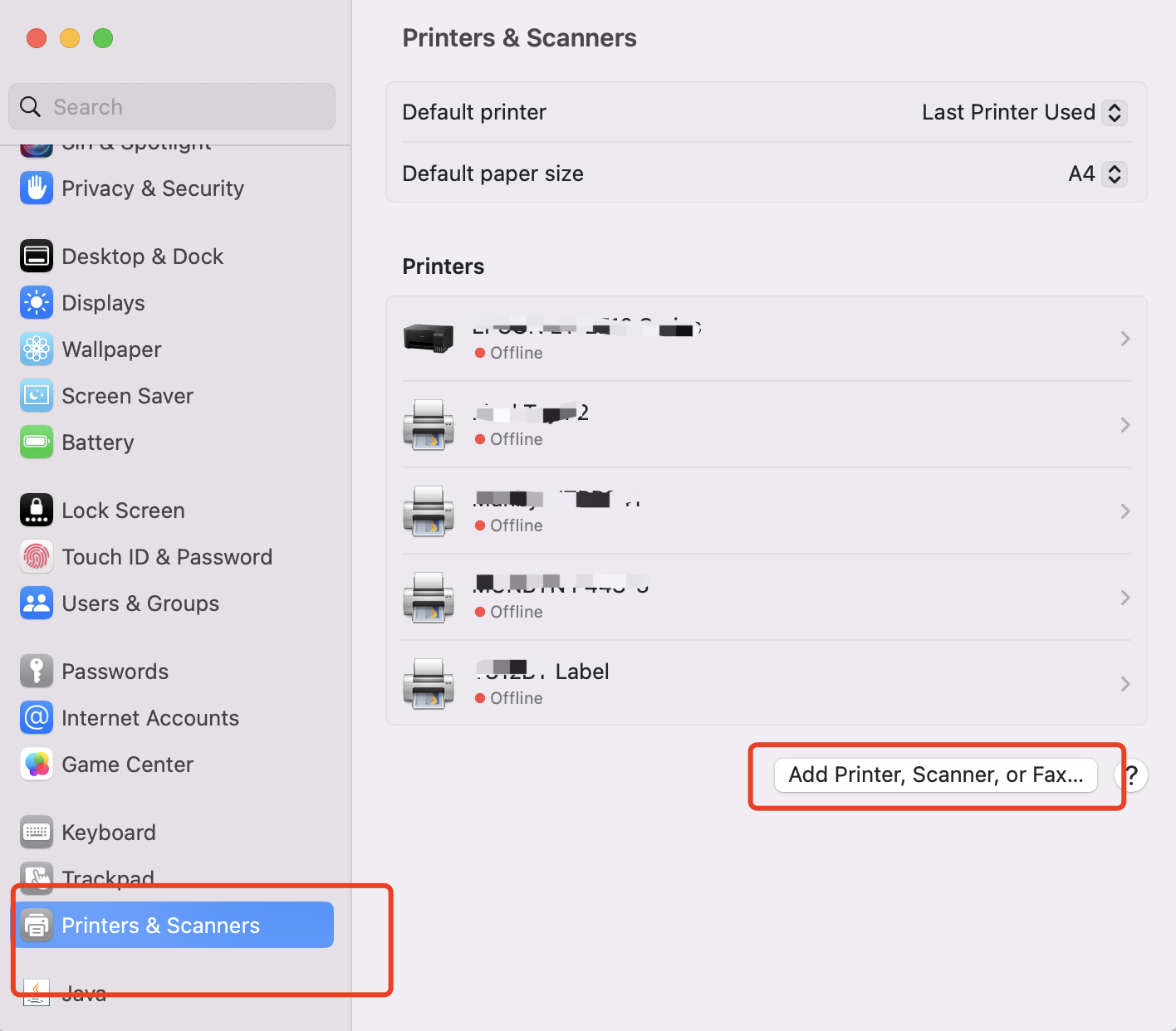
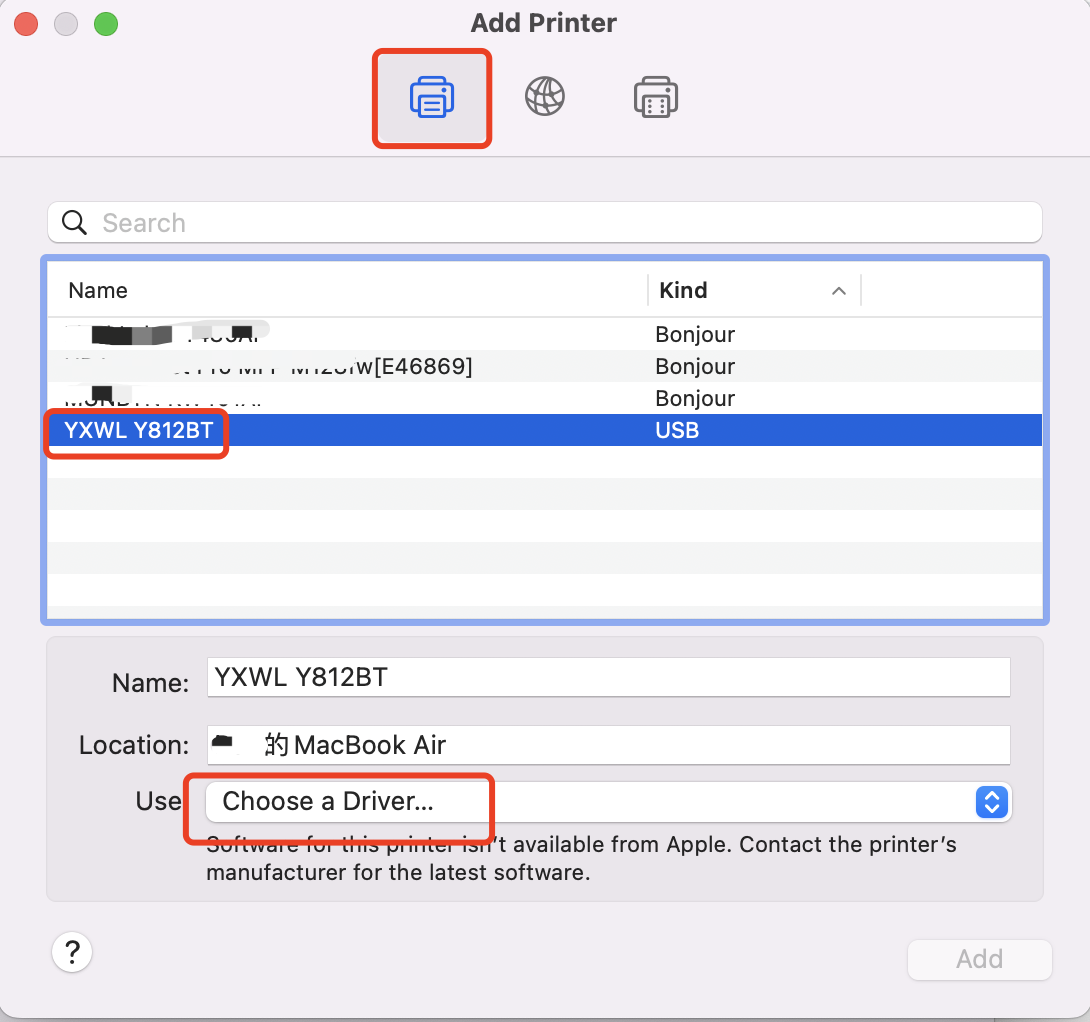
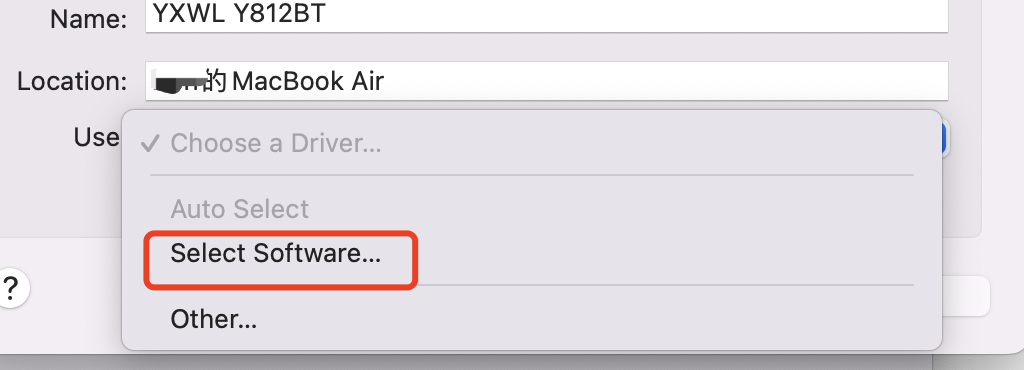
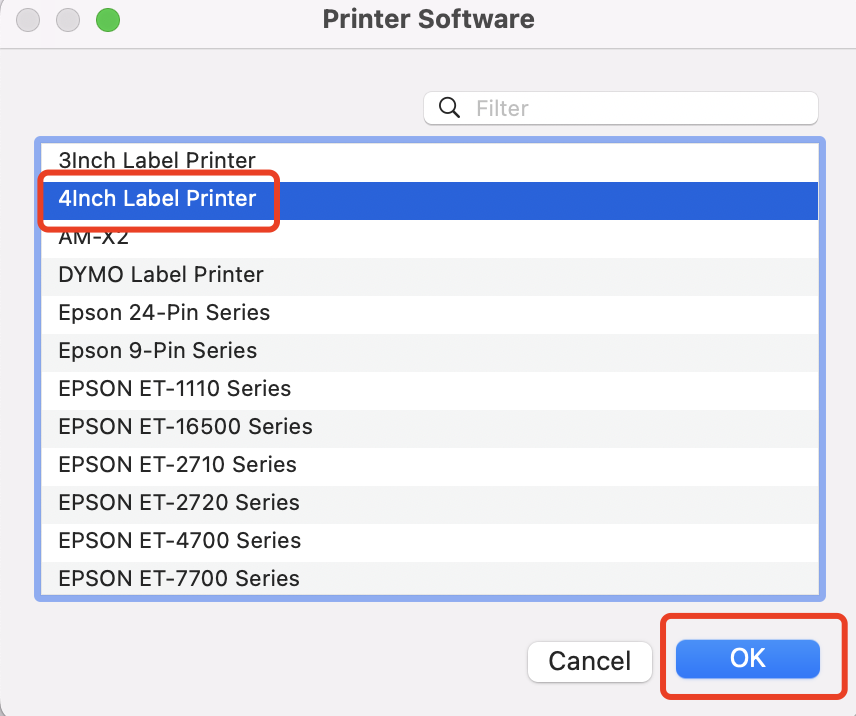
Supported model: C80
| 1. Press and hold the powerkey for 2s to Turn ON printer. |
| 2. Connect printer to your computer via USB Cable. |

| Install FlashLabel Printer driver on ChromeBook(ChromeOS): |
| 1. Search and add "Flashlabel" extension in the Chrome Web Store. |


| 2. Click the extension icon-> Choose"FlashLabel" ->Click "Add" -> Choose"Y468"-> Click "Connect". |

| Tips: You can change Speed,Density,Resolution in "Setting Printer" menu. |


| 3. Open a PDF file with Chrome Browser-> Choose "FlashLabel" and your paper size-> Click "Print". |

请在设置中选择一个页面
请选择下方子菜单查看详情


P.S. If the download is blocked by the webpage, you can use this Google Drive link instead.


请选择下方子菜单查看详情
Welcome! NOTE:Applies to architecture aarch64
It takes a few minutes to show how to install FlashLabel Printer driver on raspberrypi via USB:
| 1. Please ensure printer is Turn OFF. |
| 2. Connect printer to your computer via USB Cable. |
| 3. Attach the power cable to power adapter, then connect the power cable to the printer, and plug it into the socket. |
| 4. Turn ON printer. |
| 5. Download Printer driver from button: |

| 6.run "A4_PI_Driver_Ver1.2.1.run", follow below steps to install printer driver. |

| 7.Follow below steps to Add printer. |


| 8.Enjoy your printing with FlashLabel Printer! |
Attachment (1)


